How to Use
This guide walks through the full Session / TData export flow in page order.
About screenshots
Screenshots below are placeholders from the dev environment. UI elements match production; final screenshots will be replaced later. Path: docs/public/screenshots/session-export/.
Before you start
- Open tele.xiaohutou.top in your browser
- Have your purchased auth code ready
- Have the Telegram account you want to export (your phone must be able to receive codes or scan QR)
Step 1: Enter auth code
Enter your purchased auth code on the home page and click Log in.
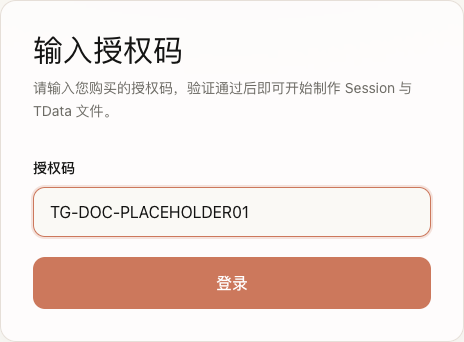
- Example format:
TG-XXXXXXXXXXXXXXXX - After verification, the page shows remaining uses (e.g. "10 / 10 remaining")
- If you see errors such as code not found, disabled, expired, or invalid, see Purchase and contact support
Step 2: Choose login method
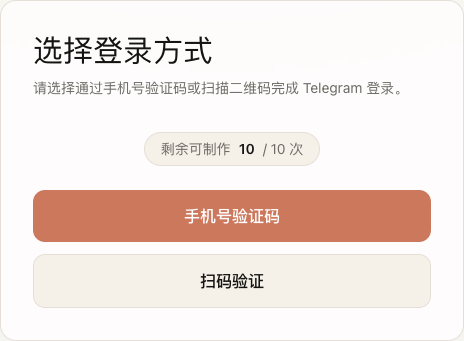
After verification, choose how to sign in to Telegram:
| Button | Description |
|---|---|
| Phone verification | Enter your phone number and receive a 5- or 6-digit code from Telegram |
| QR code scan | Scan the on-page QR code with Telegram on your phone |
If remaining uses are 0, both buttons are disabled — you need a new auth code.
Path A: Phone verification
Step 3A: Enter Telegram account
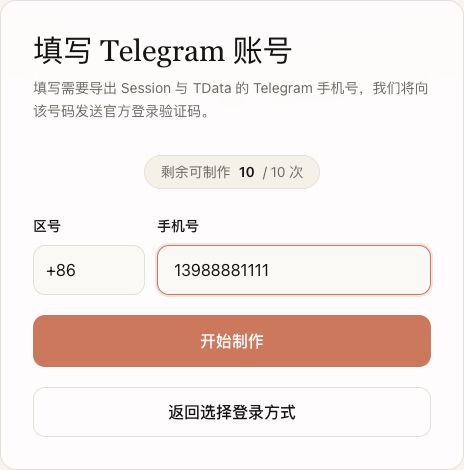
- Select country code (e.g.
+86) - Enter phone number (digits only, without country code)
- Click Start export
Telegram will send an official login code to that number.
Step 4A: Enter Telegram verification code
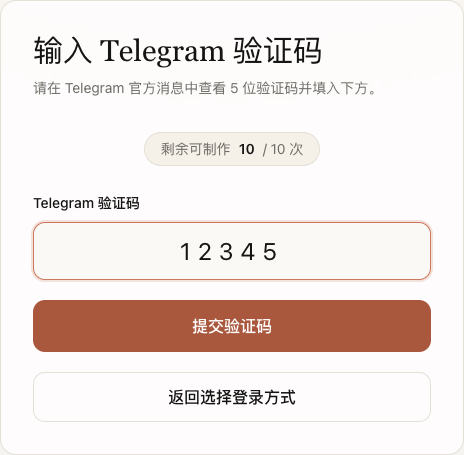
- Check the official Telegram message on your phone for the 5- or 6-digit code
- Enter it on the page and click Submit code
Step 5A (optional): Two-step verification password
If your account has two-step verification enabled, enter your Cloud Password:
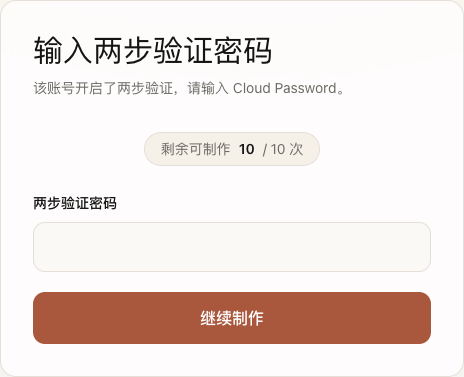
- This is the two-step password you set in Telegram
- It is only used during login and is not written to exported files
Path B: QR code login
After choosing QR code scan, a QR code appears on the page:
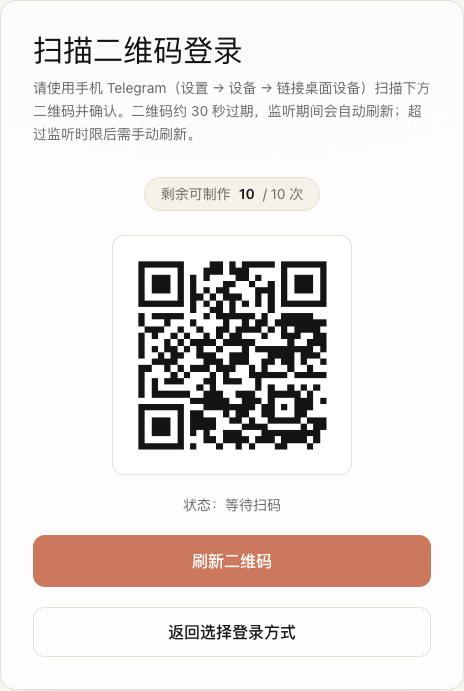
- Open Telegram on your phone
- Go to Settings → Devices → Link Desktop Device
- Scan the QR code on the page and confirm
QR code notes
- The QR code expires in about 30 seconds and refreshes automatically while listening
- If you see "QR listen timed out", click Refresh QR code or reload the page and start again
- If two-step verification is enabled, you will still see the password step (Step 5A) after scanning
Step 6: Wait for generation
After verification, the page shows "Generating Session and TData":
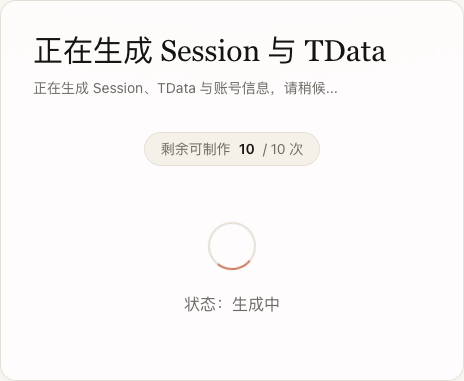
- Status shows Building
- Wait patiently; do not close the page
- If generation fails, an error is shown — go back and choose a login method again
Step 7: Download files
When complete, click Download Session / TData ZIP:
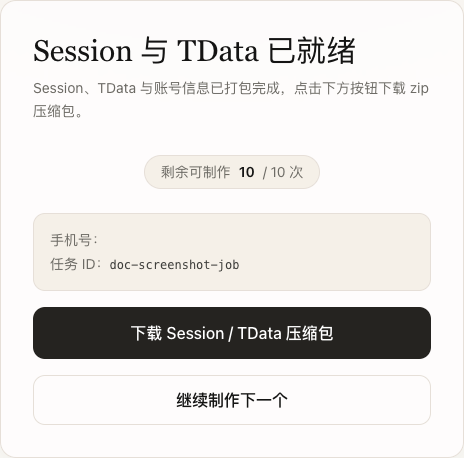
- ZIP filename: country code + phone number, e.g.
8613988881111.zip - Store the file securely — it contains sensitive login information
ZIP contents after extraction
The root folder name matches the ZIP filename (without .zip):
8613988881111/
├── session.txt      # StringSession text
├── account.json     # Account and device metadata
└── tdata/ # Telegram Desktop format directory| File | Contents |
|---|---|
session.txt | Telethon StringSession string for Python libraries |
account.json | Phone, generation time, device info, 2FA flag, profile, etc. |
tdata/ | Local data directory importable into Telegram Desktop |
Export another account
If your auth code still has remaining uses, click Export another to export a different account (or the same account again).
Each successful export uses 1 remaining use.
Log out
Click Log out in the top-right corner to clear your session; you will need to enter your auth code again.
Quick troubleshooting
| Issue | What to try |
|---|---|
| Invalid / expired auth code | Contact support to verify code status |
| 0 remaining uses | Purchase a new auth code |
| Wrong verification code | Confirm the 5- or 6-digit code from Telegram's official message; check expiry |
| QR scan timeout | Click Refresh QR code and try again |
| Download failed | Ensure generation completed; if the file expired, start a new export |
See Glossary for more term definitions.